Even the best developers hit a wall when customizing Squarespace.
It’s a powerful website builder, no doubt. But once you move beyond drag-and-drop, things can get tricky. A small line of code can mess up your layout. A missing tag can break your script. And sometimes, your CSS just refuses to work, no matter how correct it looks.
If you’ve spent hours debugging a simple issue, you’re not alone. These errors are more common than you think.
In this blog, we’ll go through the most frequent problems developers face while working on Squarespace, especially when dealing with custom code, layouts, scripts, and styles.
And more importantly, we’ll show you how to fix them quickly, without losing your mind.
Let’s get right into it.
Common Squarespace Errors Every Developer Faces and Their Solution
1. Custom Code Not Showing Up
You’ve added some HTML, CSS, or JavaScript, but when you refresh the page, nothing changes. No error. No update. Just the same old layout.
This usually happens when the code is either placed in the wrong spot or blocked by Squarespace.
Possible Causes:
Code is pasted in the wrong block (e.g., added in a regular text block instead of a code block)
JavaScript is placed in the header without proper script tags
Styles were injected in the wrong order
Squarespace’s security filter blocks certain scripts or tags
The browser is loading a cached version of the site
Fix It Like This:
Make sure you’re using the Code Block for HTML and inline scripts, or Header/Footer injection for global scripts
Wrap all JavaScript inside <script> tags
For CSS, use Custom CSS or inject it through the page header
Clear your browser cache, or use an incognito window
Avoid using the “document.write”, inline event handlers (onclick), or external scripts from untrusted sources, as Squarespace often blocks them
Once you place the code correctly and clear the cache, it should reflect right away. If it doesn’t, try rechecking the page source to confirm if the code is even loading. That often gives the first clue.
2. CSS Changes Not Reflecting
You tweak the styling, hit save, refresh the page, and nothing happens. The font stays the same, colors don’t update, or layout spacing remains stuck.
It feels like your CSS is being ignored completely.
What Could Be Causing It:
The selector you used is too weak, so Squarespace’s default styles override it
Your custom CSS is placed after built-in styles, but it is still not specific enough
The browser is loading an older version of the stylesheet
You’re editing a block or section that looks similar to another, but the selector doesn’t match the right element
How to Fix It:
Use your browser’s inspect tool to check which style is being applied and from where
Add more specific selectors. For example, use “.sqs-block-content p” instead of just “p”
Temporarily add “!important” to see if your rule is even being read
Clear the site cache from Settings -> Advanced -> Website Cache and refresh with a hard reload (Ctrl+Shift+R on most browsers)
If you’re using a site-wide CSS editor, double-check that no closing } or typo is breaking your styles mid-way
Instead of guessing, always test with live preview and inspect tools. That saves a lot of time.
3. “Sorry, this page is no longer available” Error
You click a link or visit a URL, expecting the page to load. Instead, you get this frustrating message.
This isn’t just annoying for you. If visitors see it, they’ll probably leave and not come back.
What’s Causing It:
The page was deleted, but the old link still exists somewhere (menu, button, footer, etc.)
The page is marked as unlisted, but you’re linking to it like a regular page
A typo in the link URL, maybe one extra letter, or a missing slash
The domain or URL structure changed, but internal links weren’t updated
If you’re using a template that has demo content, some links may still point to sample pages
Fix It Step-by-Step:
Check the Pages panel and confirm the page still exists
If it was deleted, either recreate it or remove all links pointing to it
For unlisted pages, make sure you’re linking using the correct slug
Use Site Search to scan your own content for broken links (or a free broken link checker tool)
If the issue comes from a third-party button or plugin, edit the embed code and update the URL
Always click through every link after changes. Broken paths are easy to miss, but they leave a bad impression.
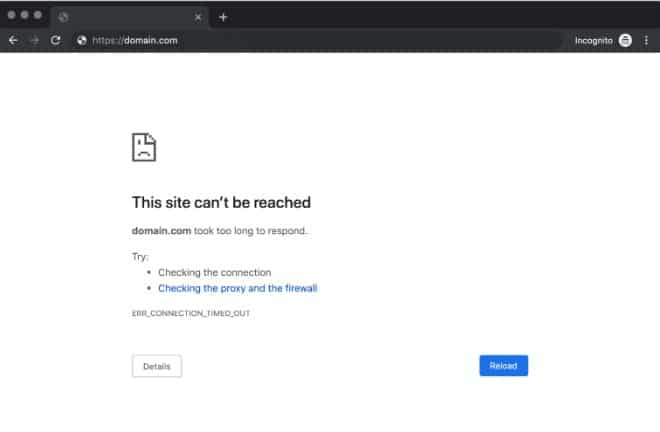
4. “Connection Timed Out” Error
Instead of your site loading, you get a white screen and a timeout message. Sometimes it takes a few tries to even reproduce the issue.
Why It Happens:
Poor internet connection on your end or the visitor’s
Hosting issues on Squarespace’s side (rare, but possible)
Heavy content (large images, videos, or scripts) slowing things down
A bad embed or third-party script that blocks loading
What You Can Do:
Test your site on a different network to rule out local issues
Remove or compress large media files
Disable new scripts or embeds one by one to spot the culprit
Check Squarespace Status if the problem is site-wide
If it happens only sometimes, it’s often linked to resource load or network delays.
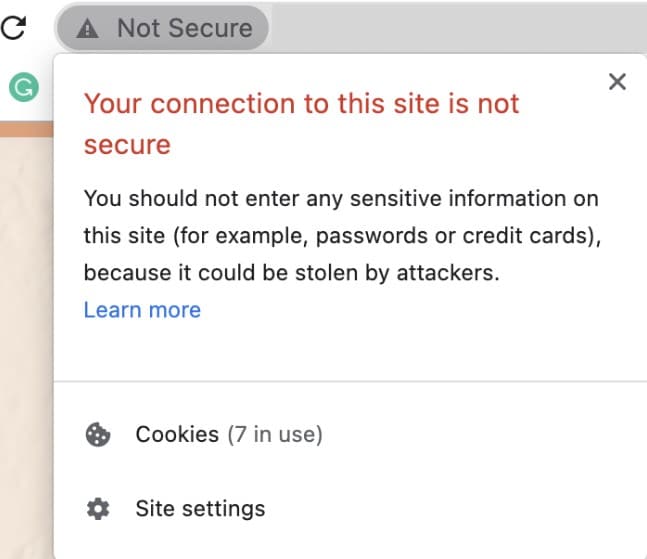
5. SSL Certificate Errors
If your site shows a “Connection not secure” or “Your connection is not private” message, don’t panic. This usually means the SSL certificate isn’t active yet or something’s off with your domain setup.
Quick Checks:
Just connected your domain? Wait up to 48 hours. SSL takes time to kick in
Go to Settings -> SSL and make sure it’s set to “Secure”
Check your site for mixed content (some HTTP links still on the page)
For custom domains, confirm that DNS settings match Squarespace’s guide
For Squarespace domains, keep the default DNS records as-is
If after 48 hours the warning still shows, your DNS may not be linked correctly or there’s a restriction from your domain provider.
If you recently added custom code, try removing it or checking from another device
Avoid editing the site from multiple tabs/devices at once
In most cases, the error clears on its own within a short time. If it keeps coming back, reach out to support.
7. SEO Errors Due to Code Changes
Sometimes the site looks fine, but traffic drops or Google Search Console starts showing warnings. This often happens after tweaking code.
What Might Be Causing It:
Meta titles or descriptions were removed or overwritten by mistake
Structured data got broken while editing header code
Inline scripts are blocking parts of the content from loading fast
Custom code pushed important elements too far down in the HTML structure
You’ve added the same H1 tag on every page, or skipped heading levels
What You Can Do:
Check the SEO tab in page settings and re-add missing meta info
Use Google’s URL Inspection Tool to see how Google views your page
Make sure the main content loads early in the source code
Avoid stuffing keywords or repeating the same title on every page
Run your site through a free tool like ahrefs or seobility to catch hidden issues
Clean code helps users, but it also helps search engines understand your site better.
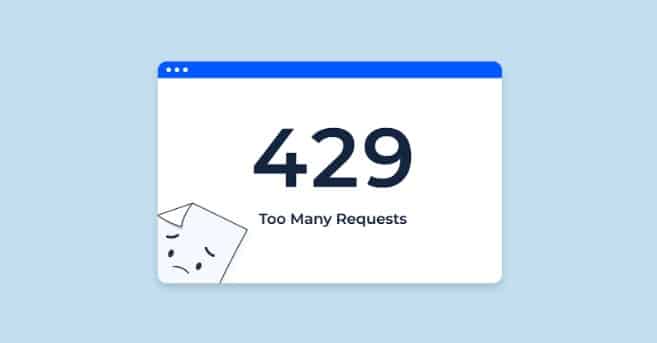
8. 429 “Too Many Requests” Error
You refresh the page or try to save changes, and suddenly you’re hit with a 429 error. It usually pops up out of nowhere and disappears just as fast.
What’s Causing It:
You (or a bot) sent too many requests to the server in a short time
Someone is running a script that keeps hitting your site again and again
You’re making lots of edits, switching pages, or refreshing too often
Third-party tools or plugins making repeated API calls
What to Do:
Pause for a few minutes and try again
Close extra tabs or browser extensions interacting with the site
Avoid using aggressive site checkers or speed test tools repeatedly
If a custom script is running, add a delay between calls
If it happens often without a clear reason, it’s worth reaching out to Squarespace support to see what’s triggering the rate limit.
Closing Thoughts
Small tweaks can help any Squarespace site shine, yet a single misplaced tag or wrong link can turn things upside down.
Remember that most problems trace back to clear roots: a script added in the wrong spot, a cache that refuses to clear, or a domain record that never finished pointing home. Find that source, and half the battle is won.
Still, no one wants to spend a whole afternoon hunting through code or DNS panels. If the fix keeps slipping out of reach, hand it to someone who works with these issues every day.
Hire a skilled Squarespace developer from Stellites. They can straighten out code, repair layouts, and handle complete custom builds while you focus on content.
A fresh set of expert eyes often saves more time and a lot more stress than any guide alone.
FAQs
1. Why is my custom JavaScript not working on all pages? Some elements may not exist on every page. Add a condition to check if the element is present before running your code.
2. Can a small CSS typo break everything? Yes, even one missing bracket or semicolon can stop all the styles that come after it from being applied correctly.
3. How do I check if my domain is properly linked? Go to Settings > Domains. If it shows “Connected” and SSL is marked as “Secure,” then your domain is linked properly.
4. Do too many blocks affect page speed? Yes, using many image-heavy blocks, videos, or embeds on one page can increase load time and affect mobile performance too.
5. How do I test changes without affecting live pages? Create an unlinked page, test your updates there, and once everything looks fine, move those changes to your live page.